
You’re somewhere in Bangkok or Barcelona, tethering your laptop and streaming music, and suddenly you wonder: how much data have I actually burned through? Running out of eSIM data mid-trip is the kind of problem you only make once. This guide walks you through checking your eSIM data usage on both iPhone and Android, plus third-party apps and carrier tools that make tracking even easier.
📺 Video Guide
Why tracking eSIM data usage matters
Unlike a traditional SIM card tied to a monthly bill, most travel eSIM plans come with a fixed data allowance: 1 GB, 5 GB, 10 GB, or sometimes unlimited. Once you hit your cap, your connection either drops completely or throttles to speeds that make loading a map feel like dialup. Knowing where you stand lets you adjust your habits before that happens.
Travelers frequently underestimate background data consumption. Apps like iCloud Photos, Google Drive backups, and automatic software updates can quietly chew through hundreds of megabytes while your phone sits in your pocket. According to Ericsson’s Mobility Report, the average smartphone now uses over 19 GB per month globally, a number that climbs each year.
How to check eSIM data usage on iPhone
Apple makes it straightforward to monitor data per line, which is exactly what you need when running a physical SIM alongside a travel eSIM. Here’s the process on iOS 17 and later:
Step 1: Open the Settings app and tap Cellular (labeled “Mobile Data” in some regions).
Step 2: If you have dual SIM or multiple eSIMs, you’ll see each line listed separately. Tap the eSIM line you want to check.
Step 3: Scroll down to the “Current Period” section. This shows total data consumed since the last reset, broken down by app.
Step 4: Tap “Show All” to see every app that has used data, sorted by consumption. System Services at the bottom captures background tasks like push notifications and time synchronization.
Step 5: To reset the counter (do this when you activate a new eSIM plan), scroll to the very bottom and tap “Reset Statistics.”
💡 Pro Tip
Reset your statistics the moment you activate your travel eSIM. Otherwise, iPhone lumps together data from your home plan and travel plan, making it impossible to know how much of your travel allowance remains.
How to check eSIM data usage on Android
Android varies more by manufacturer, but the core path is the same across stock Android, Samsung One UI, and other skins.
On stock Android (Pixel phones):
Go to Settings > Network & Internet > SIMs. Tap your eSIM line, then select Data usage. You’ll see a graph showing daily consumption over your billing cycle, plus an app-by-app breakdown below.
On Samsung (One UI):
Open Settings > Connections > Data usage. If you have multiple SIMs, tap Mobile data usage and select the eSIM line from the dropdown at the top. Samsung also lets you set data usage warnings and hard limits directly from this screen.
On Xiaomi/MIUI:
Navigate to Settings > SIM cards & mobile networks, select the eSIM, then tap Data usage. MIUI also has a built-in Security app with a data monitor that tracks usage in real time.
📝 Important Note
Android’s built-in data tracker measures differently from your carrier. The phone counts raw bytes, while your eSIM provider may count data differently (some round up per-session). Always cross-reference with your provider’s app or dashboard for the most accurate remaining balance.
Setting data usage warnings and limits
Both iOS and Android let you set up notifications before you hit your data cap. This is especially useful with travel eSIMs where overages either cut your service or cost real money.
iPhone: Go to Settings > Cellular > your eSIM line. Unfortunately, iOS doesn’t have a built-in data warning feature, so you’ll need to manually check or use a third-party app (covered below).
Android: Open Settings > Network & Internet > SIMs > Data usage. Tap the gear icon and enable “Set data warning.” You can specify a threshold in MB or GB. When you hit it, you’ll get a notification. You can also enable “Set data limit” to automatically disable mobile data at a hard cap, which prevents any overage entirely.
Setting your warning at 80% of your plan’s total allowance gives you enough runway to adjust your usage. If you have a 5 GB plan, set the warning at 4 GB and the hard limit at 4.8 GB.
Checking data usage through your eSIM provider’s app
Your phone’s built-in tools measure total data flowing through the connection, but your eSIM provider’s app shows what actually counts against your plan. This distinction matters because some providers use different counting methods or offer bonus data that doesn’t appear in your phone’s settings.
Airalo: Open the Airalo app, go to “My eSIMs,” and tap the active plan. You’ll see remaining data, days left, and a usage bar. Airalo also sends push notifications when you’re running low.
Holafly: The Holafly app displays real-time data usage for unlimited plans (which technically have fair-use policies). Their dashboard shows daily consumption patterns, helpful for identifying which days you used the most data.
Nomad eSIM: Check remaining data directly in the app under your active plan. Nomad also supports data top-ups if you’re running low without needing a new eSIM.
GigSky and Maya Mobile: Both offer in-app dashboards with remaining data, validity period, and one-tap top-up options.
✓ Why provider apps are more reliable
- ✓ Show exact remaining balance against your purchased plan
- ✓ Account for provider-specific counting methods (session rounding, protocol overhead)
- ✓ Send low-data push notifications before you run out
- ✓ Allow instant top-ups without installing a new eSIM profile
Third-party data monitoring apps
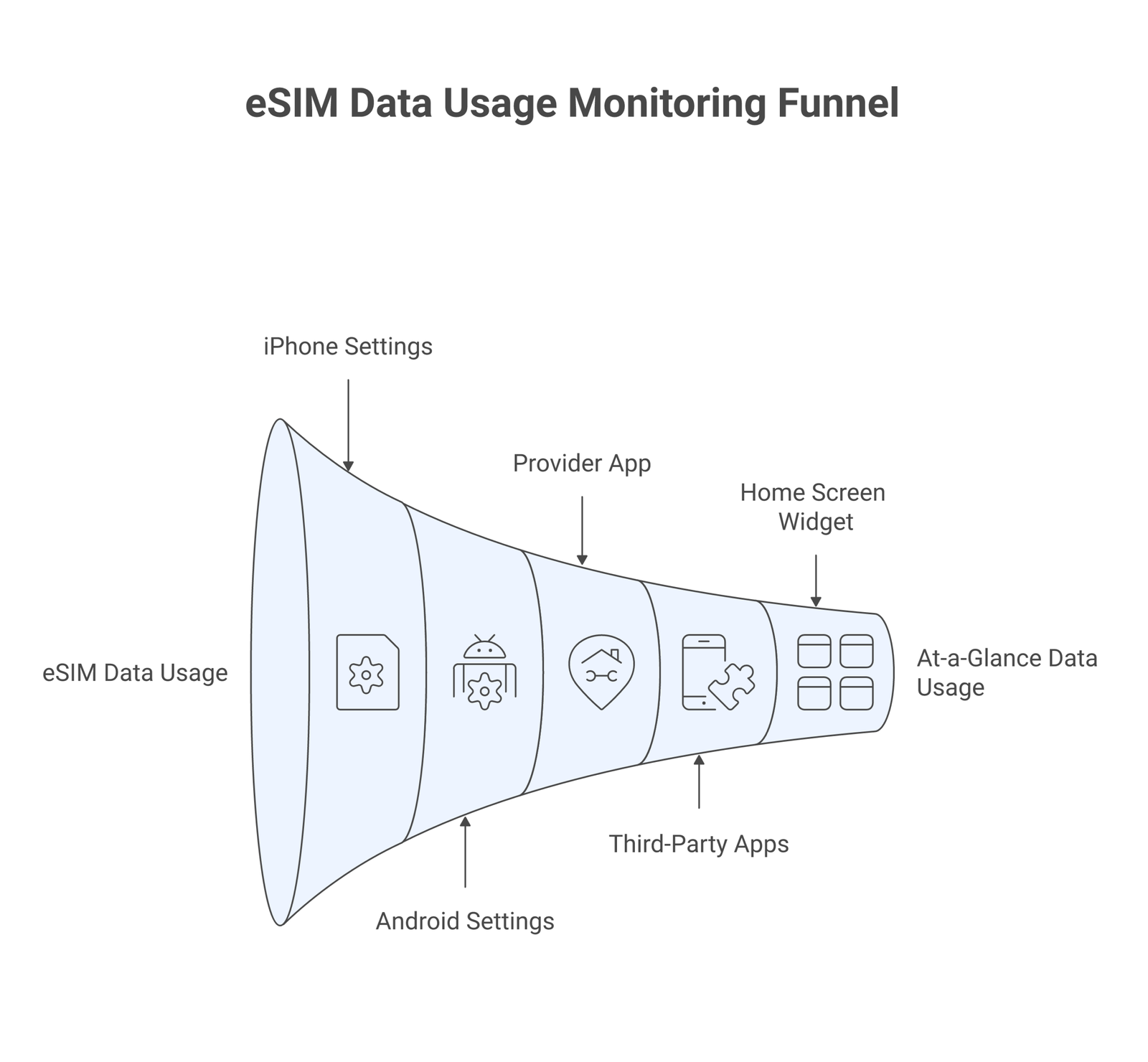
If you want more control than what your phone’s settings or provider app offers, these third-party apps add widgets, alerts, and detailed breakdowns.
My Data Manager (iOS & Android): Free app that tracks cellular, Wi-Fi, and roaming data separately. Set custom plan limits for your eSIM and get daily, weekly, or monthly usage reports. The home screen widget is particularly useful for travelers who want a quick glance at remaining data without opening an app.
Data Usage Monitor (Android): Lightweight app focused on per-app data tracking. Set individual data budgets for heavy consumers like YouTube or Instagram. Supports multiple SIM profiles, making it ideal for dual-SIM setups with an eSIM.
DataMan (iOS): Real-time data usage tracker with a circular widget that shows percentage of your allowance used. Runs in the background and can forecast whether you’ll exceed your plan based on current usage patterns. The pro version supports separate tracking for multiple cellular plans.
According to Statista’s mobile internet research, social media and video streaming account for over 65% of mobile data consumption globally. Knowing which apps are your biggest data consumers helps you make smarter decisions about when to connect to Wi-Fi instead.
How to reduce eSIM data consumption while traveling
Once you know how much data you’re using, the next step is keeping it under control. These settings make a real difference, especially on limited travel plans.
Disable automatic app updates: On iPhone, go to Settings > App Store and turn off “App Downloads” and “App Updates” under Automatic Downloads. On Android, open the Play Store, tap your profile, then Settings > Network preferences > Auto-update apps and select “Over Wi-Fi only.”
Turn off cloud photo syncing: iCloud Photos and Google Photos can upload every picture and video you take in full resolution. Disable cellular uploads in each app’s settings and wait for Wi-Fi to sync.
Download maps offline: Both Google Maps and Apple Maps support offline downloads. Save the areas you’ll visit before leaving your hotel’s Wi-Fi. This alone can save 50-100 MB per day of navigation.
Use Low Data Mode: iPhone has a dedicated Low Data Mode toggle under Settings > Cellular > your eSIM line > Low Data Mode. This pauses background tasks, reduces streaming quality, and delays automatic downloads. Android has a similar “Data Saver” option under Settings > Network & Internet.
Limit streaming quality: Netflix, Spotify, and YouTube all have data-saving modes. Netflix’s “Save Data” mode uses about 0.3 GB per hour versus 3 GB per hour on high quality. Spotify’s low quality setting uses roughly 40 MB per hour compared to 150 MB on very high.
💡 Pro Tip
Before leaving home, download your travel playlists, podcasts, and show episodes. Offline entertainment uses zero mobile data and works in airplane mode too.
Checking data usage on dual SIM setups
Running a physical SIM for calls alongside a travel eSIM for data is one of the most popular dual SIM configurations among travelers. But this setup can cause confusion when checking data usage because both lines may show activity.
On iPhone, make sure your eSIM line is set as the default data line. Go to Settings > Cellular > Default Voice Line and Cellular Data to verify. When both lines are active, iOS tracks data for each line separately in the Cellular settings screen.
On Android, check Settings > Network & Internet > SIMs to see which SIM is assigned for mobile data. You can view data usage per SIM by selecting each one individually. Some Android phones also show a combined view with color-coded bars for each line.
A common problem: your phone might route data through the physical SIM instead of the eSIM if your data line setting resets after a restart. This means you could be paying roaming charges on your home SIM while your travel eSIM sits idle. Check your data line assignment after every reboot, especially on older Android devices.
What to do when you’re running low on data
You’ve checked your usage and you’re at 85% with three days left on your trip. Here are your options, from cheapest to most convenient.
Switch to Wi-Fi aggressively. Most hotels, cafes, airports, and restaurants offer free Wi-Fi. Use your remaining cellular data only for navigation and messaging. Download everything else over Wi-Fi.
Top up your existing plan. Providers like Airalo and Nomad allow in-app data top-ups. This is usually cheaper than buying a completely new eSIM plan and takes effect immediately without changing your eSIM profile or phone number.
Install a second eSIM. Modern iPhones support up to 8 eSIM profiles (with 2 active simultaneously). If your provider doesn’t offer top-ups, you can install a new eSIM from the same or different provider. Your phone handles multiple eSIM profiles without any conflict.
Enable data roaming on your home SIM as a backup. This is the expensive option, but some carriers have introduced more reasonable roaming packages. Check your home carrier’s rates before relying on this. The FCC’s guide on international roaming has useful tips for US-based travelers.
Using widgets for at-a-glance data monitoring
Digging through settings every time you want to check your data isn’t practical while traveling. Home screen widgets solve this by putting your data balance front and center.
iPhone: Long-press your home screen, tap the + button in the top left, and search for your eSIM provider’s app or a data tracking app like DataMan. The widget displays remaining data, days left, and daily average without opening any app.
Android: Long-press your home screen, select Widgets, and look for Data Usage or your provider’s widget. Samsung phones have a particularly good built-in data widget that shows current period usage with a circular progress indicator.
Having your data balance visible at a glance changes your behavior. You’ll naturally reach for Wi-Fi more often when you can see that you’ve already used 70% of your allowance with half the trip remaining.
Common data tracking mistakes travelers make
Forgetting to reset the counter. Your phone’s data counter accumulates from the last reset. If you last reset it two months ago, the number you see includes all that old data, not just your travel eSIM usage. Reset it when you activate your travel plan.
Ignoring system services. On iPhone, “System Services” can account for 500 MB or more per month. This includes push notifications, Siri, location services, and software update checks. Scroll past the app list to see this category.
Trusting the phone count over the provider count. Your phone and your eSIM provider will almost always show slightly different numbers. The provider’s number is the one that matters because that’s what determines when your plan runs out. The discrepancy comes from protocol overhead, session rounding, and different measurement points in the network stack.
Not checking which SIM is active for data. This one catches a lot of dual-SIM users. You think you’re using your travel eSIM, but your phone quietly switched to your home SIM after a restart or network disruption. Those eSIM troubleshooting steps can help you fix this quickly.
⚠️ Disclaimer
Data usage tracking methods and menu locations may vary depending on your device manufacturer, operating system version, and eSIM provider. The steps described in this article are accurate as of March 2026. Always refer to your specific device’s documentation and provider’s support pages for the most current instructions.
Frequently Asked Questions
Can I check eSIM data usage without opening the provider app?
Yes. Both iPhone and Android show data usage per SIM line in the device settings. iPhone tracks it under Settings > Cellular, and Android under Settings > Network & Internet > SIMs > Data usage. These built-in tools don’t require an internet connection or app login to view.
Why does my phone show different data usage than my eSIM provider?
Your phone measures raw bytes at the device level, while your provider measures at the network level. Protocol overhead, session rounding (some carriers round up to the nearest KB or MB per session), and different measurement timestamps cause the gap. Your provider’s number determines when your plan expires, so prioritize that figure.
How often should I check my eSIM data usage while traveling?
Check at least once daily, ideally in the evening when you’re back at your hotel on Wi-Fi. This lets you compare the day’s consumption against your remaining balance and adjust tomorrow’s behavior. Using a home screen widget makes this automatic since you’ll see the number every time you unlock your phone.
Does resetting statistics on iPhone delete my eSIM or data plan?
No. Resetting statistics only resets the usage counter to zero. It does not affect your eSIM profile, data plan, or connectivity. Your eSIM continues working normally. This is purely a local tracking reset on your device.
Can I set up automatic alerts when my eSIM data is running low?
On Android, yes. Go to Settings > Network & Internet > SIMs > your eSIM > Data usage and set a data warning threshold. iPhone doesn’t have this feature built in, but apps like DataMan and My Data Manager offer customizable alerts. Many eSIM providers also send push notifications through their apps when your remaining data drops below a certain level.